
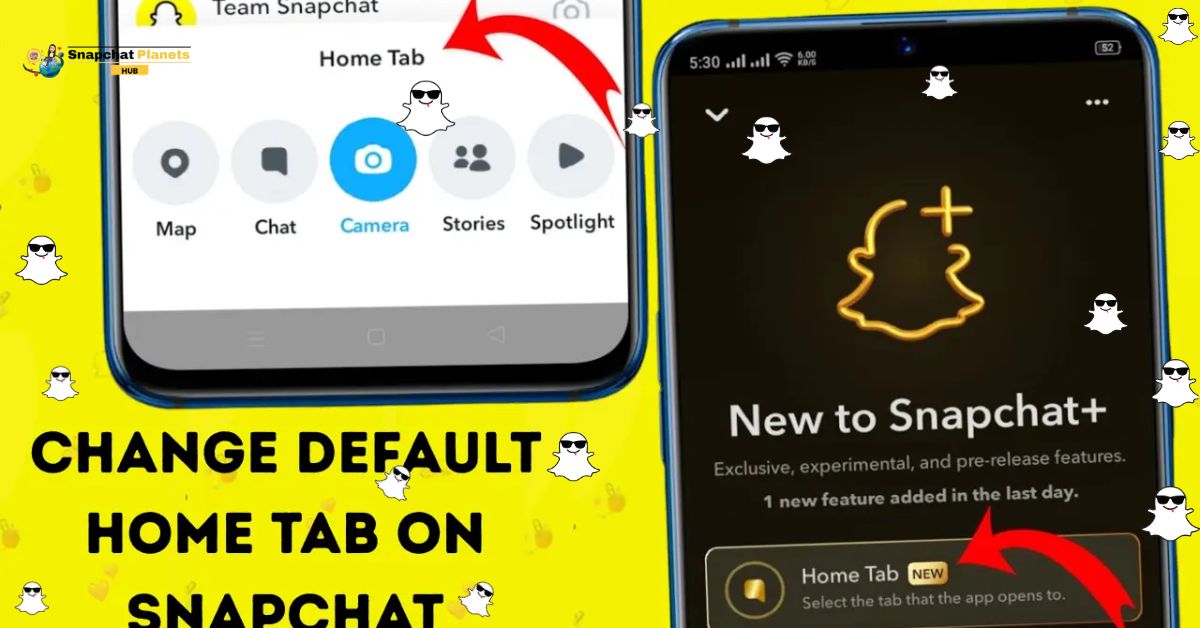
Did you know that Snapchat lets you customize your home tab just like you can adjust your playlist? Changing the default home tab on Snapchat enhances your user experience and also allows you to prioritize the features that matter most to you.
Whether you’re more into Snap planets or the latest Snapchat planets, personalizing your interface can make all the difference. In this guide, you will learn simple steps to customize your home tab and unleash the full potential of your Snapchat experience.
Why Change Your Snapchat Home Tab?
Changing your Snapchat home tab can improve your experience. If you mainly use Snapchat

- For messaging.
- Watching Stories.
- Checking out Spotlight videos.
- Or looking at the Snap Map, setting your default snapchat screen can save you time.
You won’t have to swipe past the camera anymore; you can go straight to the content you enjoy. This simple change can make the app easier and more fun to use.
What You Will Need
To change your default home tab on Snapchat, you need an active Snapchat+ subscription, which costs $3.99 per month, and make sure you have the latest version of the app installed on your device, whether you’re using iOS or Android.
This feature isn’t available for the free version, so if you want to personalize your experience, investing in a subscription is essential.
How To Change Default Home Tab On Snapchat
Changing your snapchat home screen is a breeze with Snapchat+.
- Just open the app.
- Rap your Bitmoji or profile icon in the top-left corner.
- select the Snapchat+ option marked with a purple + badge.
- From there, choose “Home Tab” in the customization settings and decide which tab you’d like as your new default.
- Chat for messaging, Stories for viewing friends’ updates, Spotlight for short videos, or Map for sharing locations.
- Simply exit the settings, and your change saves automatically!
Which Tab Should You Choose?
If you’re unsure about which tab to set as default on Snapchat, consider your main activities.

- The Chat Tab is your go-to if messaging friends is your priority, keeping your conversations front and center. Prefer immersing yourself in your friends’ lives?
- The Stories Tab is for you, letting you easily view your friends’ updates and share those moments.
- If you enjoy a quick laugh or entertaining clips, the Spotlight Tab showcases Snapchat’s best short videos, making this a fun choice.
- If sharing locations and discovering nearby events excite you, the Map Tab will serve you well.
What’s great is the flexibility Snapchat offers. If your usage habits change, you can easily switch your default tab later.
Things To Keep In Mind
Keep a few key points in mind.
- Your camera is just a quick swipe away or easily accessible through the camera icon, ensuring that snapping moments remains hassle-free.
- You’ll need an active Snapchat+ subscription.
- It’s also important to note that you can only set one default tab at a time.
- Be aware that major app updates can reset your preferences.
Conclusion
Change default home tab on Snapchat can truly enhance your user experience, allowing you to access your preferred content quickly and efficiently. Whether you’re a fan of Snap Plus or simply want to arrange your Snapchat planet order, customizing your home screen can transform how you interact with the app.
By personalizing the Snapchat solar system to your liking, you unlock a more tailored and enjoyable experience every time you open the app. Take the time to explore these settings and find the arrangement that suits you best. Don’t miss out on making Snapchat work for you — start customizing your home tab today!
FAQs
How do I Change the Home Tab on Snapchat?
To change the home tab on Snapchat, go to your profile, tap on the gear icon for settings, then scroll to the “Manage” section where you can adjust your home tab preferences.
How do I Change the Home Setting on Snapchat?
You can change the home setting by accessing your profile settings, selecting “Manage,” and then customizing your home screen options as per your preference.
How do I Change my Home Screen on Snapchat?
To change your home screen, navigate to the settings menu from your profile and modify the display settings found under the “Manage” section.
How do I Change my Snapchat Home Screen Icon?
Currently, Snapchat does not allow users to customize or change the home screen icon, but you can rearrange your snaps and stories for easier access.