Have you ever felt overwhelmed by the thought of navigating a new app? Wondering how to Create a Snapchat account easily? It is simpler than you might think, and in no time, you’ll be exploring features like Snapchat planets and Snap planets.
Whether you’re looking to keep up with friends or share your unique moments, understanding the setup process is crucial. By the end of this guide, you’ll be ready to dive into the vibrant world of Snapchat.
Creating A Snapchat Account On Mobile (Android/Ios)
Creating a Snapchat account is a breeze on your mobile device, and it’s the quickest way to dive into the fun of snapping and chatting.
Creating a Snapchat account is easy on your phone.
- Install the app from the App Store (iPhone) or Google Play Store (Android).
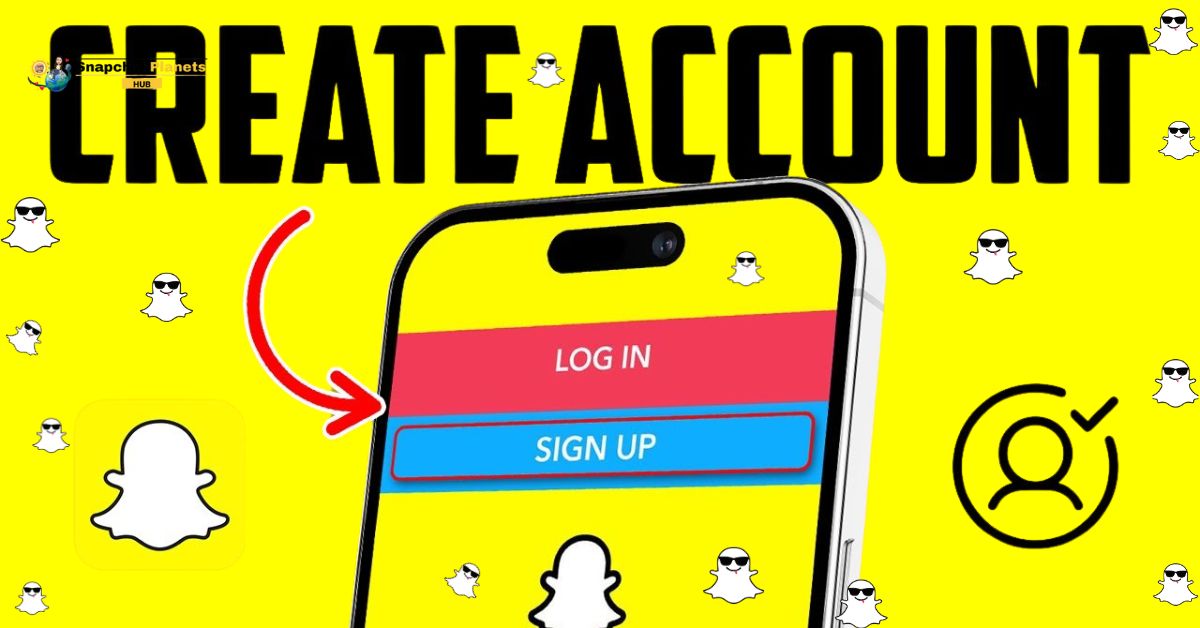
- Open the app and tap “Sign Up” to start your journey.
Set up your Snapchat identity.
- Enter your first and last name (you can change it later, but start with something you like).
Provide your birthday.
- This helps verify your age and gives you relevant content.
Choose a username.
- Your friends will use this to find you. Pick something memorable and unique since you’ll keep it for a year.
Create a strong password.
- Use a mix of letters, numbers, and symbols to keep your account secure.
- Avoid common passwords like “password” or “123456.”
Add a phone number.
- This is optional but recommended for extra security when recovering your account.
Complete verification prompts.
- Look out for verification emails or SMS to secure your account and get it ready for use.
Creating A Snapchat Account On Web/Pc
Creating a Snapchat account on your computer is a straightforward process, even though the platform is primarily designed for mobile use.
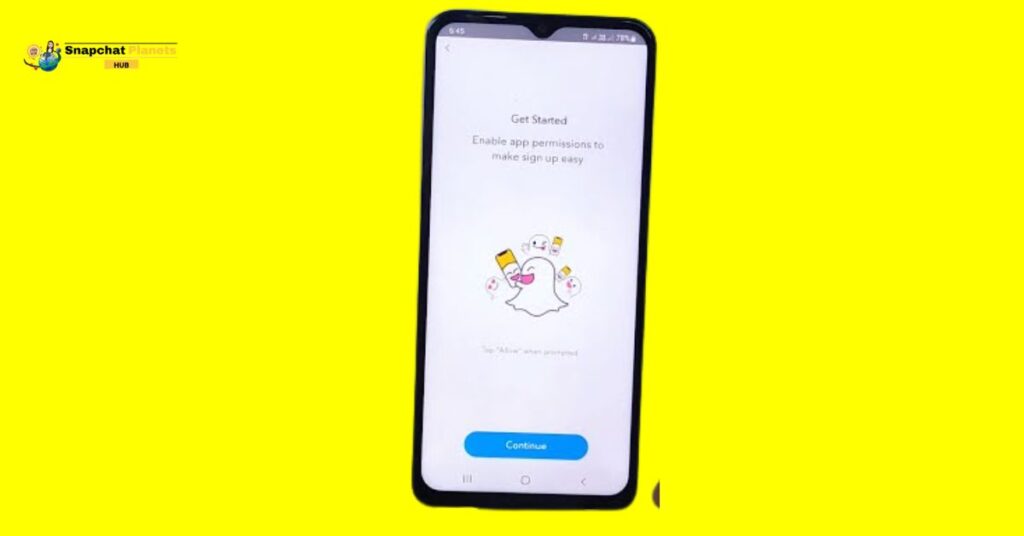
- Open your browser and go to the Snapchat sign-up page: https://accounts.snapchat.com.
- Click on “Sign Up” to start creating your account.
- Fill in your name, pick a unique username, create a secure password, and enter your email address.
- Add your birthdate to meet age requirements.
- Check your email for a verification link from Snapchat and click it to confirm your account.
- To use all of Snapchat’s features, download the app on your smartphone.
- Log in with the same username and password to start snapping and exploring!
Customizing Your Snapchat Profile
Customizing your Snapchat profile is more than just a fun activity, it’s an expression of who you are.
Changing Your Profile Picture (Bitmoji)
Customizing your Snapchat profile can truly enhance your experience on the platform. To change your profile picture, you will need to set up a Bitmoji, which serves as your personal cartoon avatar.
To do this:
- Simply open Snapchat.
- Tap your profile icon in the top-left corner.
- Then tap your current Bitmoji or the blank profile circle.
- From there, scroll down and select “Change Selfie.”
- Browse through the variety of Bitmoji options, choose one that represents you best, and save it.
- This unique avatar is a fun and creative way for friends to recognize you, making your profile stand out among others.
Changing Your Display Name
Changing your display name on Snapchat is a breeze and can give your profile a fresh touch whenever you want. To update it:

- Just head to Settings by tapping the gear icon in the top-right corner.
- In the “My Account” section, find “Name,”
- Type your new name, and hit “Save.”
Keep in mind that while your display name can be updated anytime, your username remains fixed for a year, this means friends who have known you might still see your old name. Any new friends will only see your latest update.
Managing Your Snapchat Account Security
Managing your Snapchat account security is crucial to keeping your personal information safe from prying eyes.
Changing Your Password
Changing your password on Snapchat is an essential step in securing your account.
- Start by opening the app.
- Tapping the gear icon to access Settings.
- In the “My Account” section, hit “Password” to initiate the process.
- You’ll need to enter your current password followed by your new one.
- Make sure your new password is strong, use a mix of letters, numbers, and special characters to enhance security.
- Once you’ve saved the new password, use it for future logins.
Resetting A Forgotten Password
If you forgot your Snapchat password, don’t worry; resetting it is easy.
You can reset it in two ways.
Email Method:
- Tap “Forgot Password?” on the login screen.
- Select “Email.”
- Check your inbox for a password reset link.
- Click the link to create a new password.
SMS Method:
- Tap “Forgot Password?”
- Choose the SMS option.
- Enter your phone number.
- Get a verification code and set up a new password.
Conclusion
If you’re looking to create a Snapchat account easily, both Android and iPhone devices offer straightforward steps to get you started.
The app’s user-friendly interface makes it simple to sign up, customize your profile, and start snapping with friends. With just a few taps, you can join a vibrant community of users sharing fun moments.
Remember to explore the app’s features after you create your Snapchat account easily, as you’ll find options for adding filters, stickers, and even chatting. Don’t wait any longer, download the app today and start your Snapchat journey!
FAQs
What information do I need to provide?
You need to provide your name, birthday, username, and a password when creating your account.
Is Snapchat free to use?
Yes, Snapchat is free! You can use it without paying for basic features.
Can I save my Snaps?
Snaps disappear after being viewed, but you can save them to Memories or your camera roll before sending.