Are you tired of the constant barrage of Snap planets and Snapchat Plus Planets notifications? If you’re considering a permanent break from the app, you’re making a bold choice that can bring peace and clarity to your life. In this comprehensive guide, we’ll show you how to delete your Snapchat account permanently.
This process is essential not only for maintaining your privacy but also for simplifying your online experience. By following our steps, you’ll be empowered to take control of your digital presence.
Why Delete Your Snapchat Account?
Many users choose to delete their Snapchat accounts due to privacy concerns. With data breaches and changing privacy policies, it’s natural to feel uneasy about how your information is being used. Some people also take a social media break to reclaim their time and mental space.
Social media can easily become overwhelming, and stepping back often leads to a clearer perspective on what truly matters.
Backing Up Your Snapchat Data
Backing up your Snapchat data is vital to keep your precious memories safe.
On PC:
- Go to accounts.snapchat.com.
- Log in to your account.
- Click on “My Account.”
- Select “My Data.”
- Enter your email and click “Submit Request.”
- Check your email for a download link (it may take a few hours).
- Open the ZIP file to access your saved snaps, chats, and profile info.
On Phone:
- Open the Snapchat app.
- Tap your profile icon in the top left corner.
- Tap the ⚙️ Settings gear in the top right corner.
- Scroll to “Account Actions” and select “My Data.”
- Enter your password and possibly a verification code.
- Choose the data to back up and enter your backup email.
- Wait for a download link in your email.
How to Delete Your Snapchat Account Permanently
If you’re ready to say goodbye to Snapchat, the process is simple yet thorough.
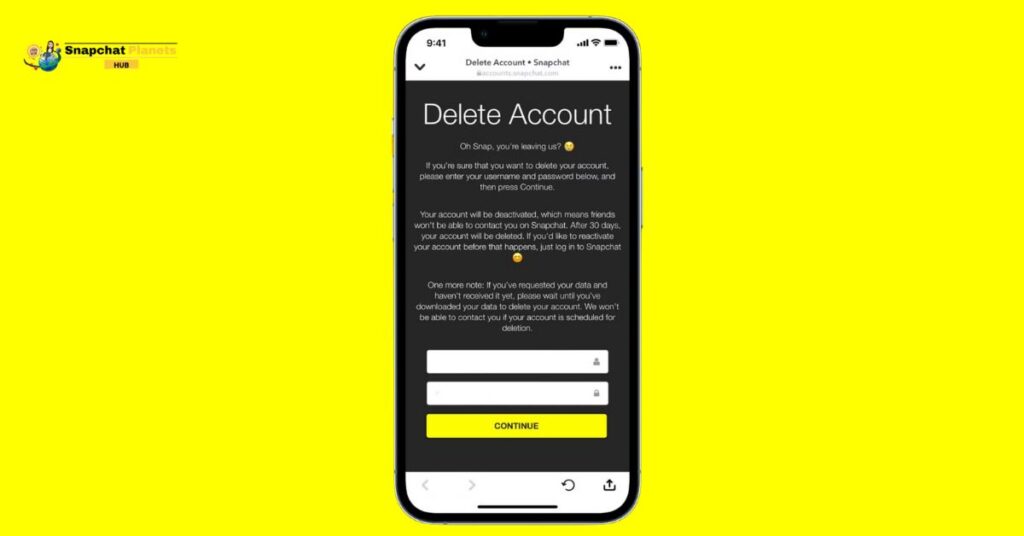
On Mobile:
- Open Snapchat on your phone.
- Tap the settings icon.
- Go to “Account Actions.”
- Select “Delete Account.”
- Enter your username and password.
- Your account will deactivate for 30 days.
- If you log back in during this time, your account will reactivate.
On Computer:
- Go to accounts.snapchat.com.
- Log in to your account.
- Click on “Account Settings.”
- Select “Delete Account.”
- After 30 days, your account and data will be permanently deleted.
Remember:
- You can reactivate your account within 30 days.
- This process helps you control your online presence.
What Happens After Deleting Snapchat?
When you delete your Snapchat, the first 30 days are crucial. During this time, your account is hidden from friends, meaning they won’t see your profile. If you change your mind, you can still log in to reactivate your account.
This period serves as a second chance, allowing you to weigh the decision against the memories and connections you’ve made. After the initial month, though, the stakes get high.
Once those 30 days are up, everything tied to your account disappears for good. All snaps, chats, stories, and even memories vanish, leaving you with nothing to retrieve. Your username becomes unavailable, which means even you can’t use it again.
All saved chats with friends are lost, erasing any record of conversations and moments you shared. This permanent deletion can be a stark reminder of the digital connections you once treasured.
Conclusion
Knowing how to delete your Snapchat account permanently is essential for those looking to take a break from social media or move on to other platforms. The process is straightforward, but make sure you follow the steps carefully to avoid any mistakes.
Once your account is deleted, you will lose all your saved data and memories of Snapchat planets, so it’s wise to think about your decision. If you’re sure about your choice, just follow the instructions provided earlier in the article. Don’t hesitate to take control of your digital presence today!
FAQs
How to Delete Snapchat Account Permanently?
To delete your Snapchat data permanently, go to your account settings, navigate to ‘My Data,’ request your data, and follow the prompts. After that, delete your account through the ‘Delete My Account’ option.
Can I Delete my Snapchat Account?
Yes, you can delete your own Snapchat account by logging into the Snapchat website and following the ‘Delete My Account’ instructions.
Can I get Back a Permanently Deleted Snapchat Account?
No, once your Snapchat account is permanently deleted, it cannot be recovered.
Does Deleting Snapchat Delete Your Account?
Not automatically. Deleting the app does not delete your account; you must go through the account deletion process.