Feeling overwhelmed by My AI on Snapchat? You’re definitely not the only one, as many users are eager to know how to remove My AI on Snapchat and get back to enjoying their Snap planets.
With all the fun content and features Snapchat has to offer, having a pesky AI can be distracting. Here, we’ll break down the simple process for removing that AI, letting you fully immerse yourself in the enchanting universe of Snapchat planets.
What Is My AI On Snapchat?
My AI is Snapchat’s innovative chatbot, designed to make your life easier. Whether you’re looking for the best travel spots, searching for the perfect gift, or craving a new recipe, it acts like a mini virtual assistant right in the app.
From engaging in lighthearted conversations to providing helpful suggestions, My AI adds a layer of convenience you didn’t know you needed.
Some users prefer a cleaner chat feed without the AI hovering at the top. This is where Snapchat Plus shines, allowing users to remove or unpin My AI whenever they wish.
This gives you full control over your chat experience, ensuring that your interactions with friends take center stage without distractions.
How To Unpin My Ai On Snapchat
If you’re a Snapchat Plus user and want to unpin My AI from your chat feed, it’s a straightforward process.
- Just open Snapchat.
- Tap on your Profile icon in the top-left corner.
- Locate the Snapchat+ banner on your profile.
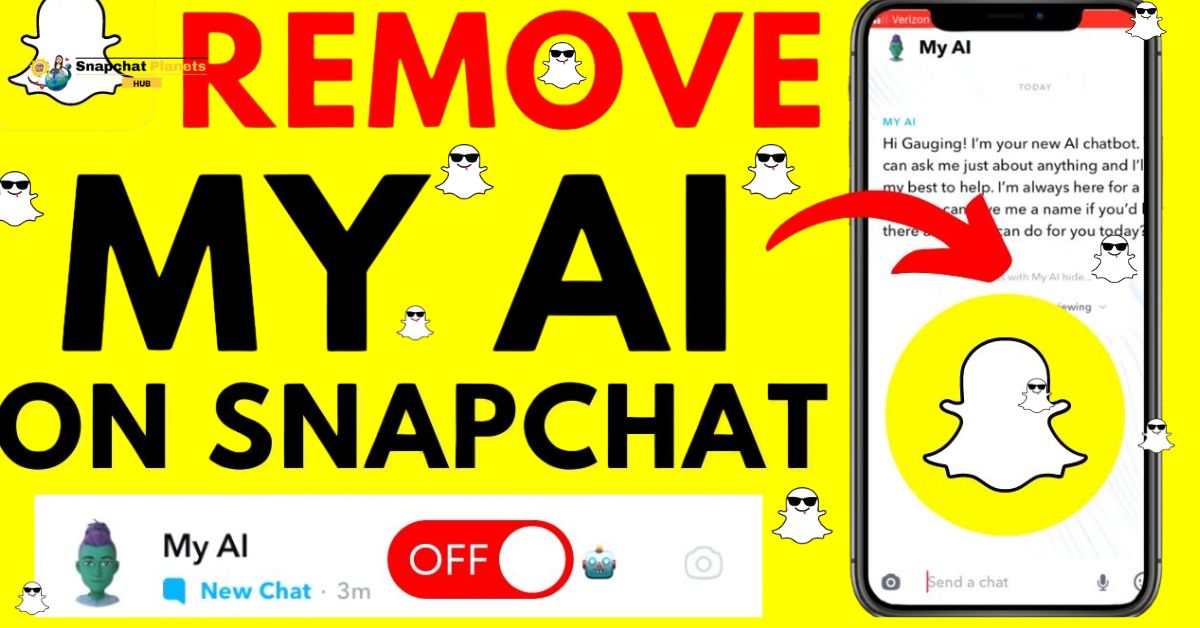
- From there, simply toggle off the My AI option, and voila!
My AI will vanish from your chat screen, giving you a cleaner space for your friends and conversations.
How To Delete My Ai On Snapchat
If you’re a Snapchat Plus user and looking to delete My AI from your chat list, the process is pretty straightforward.
- Start by swiping right to access your Chat screen.
- From there, long-press on the My AI chat.
- Then go to Chat Settings and tap on “Clear from Chat Feed.”
- This action will completely remove My AI from your feed, giving you a cleaner, uncluttered chat experience.
Remember, you can easily re-pin it or search for it later if you change your mind.
Who Can Remove My AI On Snapchat?
If you’re looking to remove or unpin My AI from your Snapchat chat feed, only Snapchat Plus subscribers have that ability. For users on the free version, this chatbot remains pinned by default, and there’s no option to change that.
Before attempting to remove it, ensure you are subscribed to Snapchat+, which is accessible directly through the app, the App Store, or Google Play. Knowing the distinction between the two versions can save time and frustration.
How To Get Rid Of My Ai On Snapchat For Iphone And Android
If you’re looking to remove My AI from your Snapchat chat feed, there’s a crucial detail to note: you’ll need a Snapchat Plus subscription. For free users, this feature is locked, meaning you’re stuck with the AI no matter how much you want to clear it out.
If you’re a Snapchat Plus member, you can easily unpin or remove My AI, and the process is the same whether you’re on iPhone or Android.
How To Add Or Re-Pin My Ai To Your Chat Feed
If you’ve changed your mind about using My AI on Snapchat, getting it back is quick and easy.
- Head to your Profile page.
- Tap on the Snapchat+ banner.
- From there, just toggle My AI back on, and you’re all set!
Alternatively, you can access My AI through the Search feature.
- Simply open Snapchat.
- Tap on the Search icon.
- Type “My AI,” and hit the result.
This method brings My AI back into your chat feed automatically.
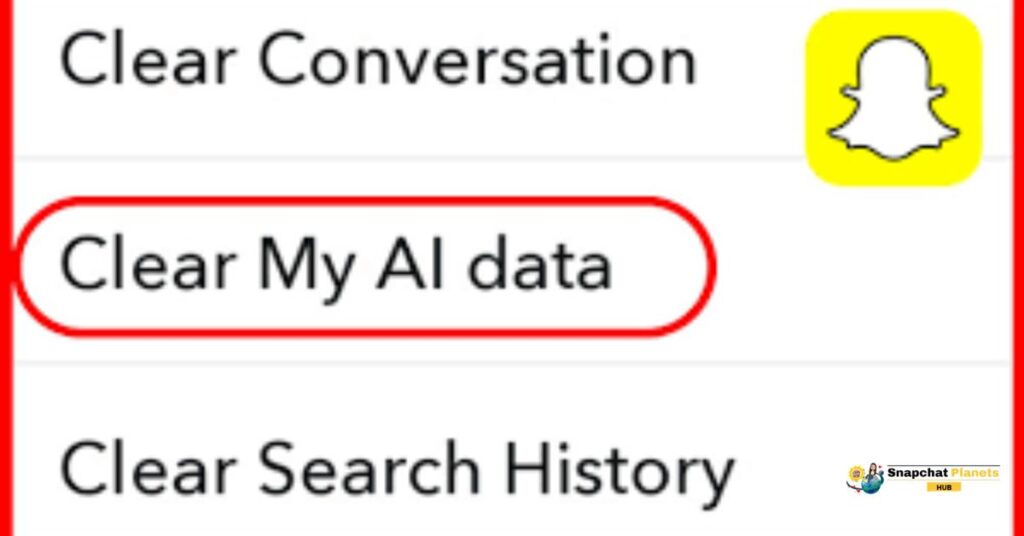
How To Clear My Ai Data On Snapchat
If you’re looking to clear the data My AI has collected on Snapchat, it’s a straightforward process that respects your privacy.
- Start by navigating to your chat feed and locating the My AI conversation.
- Once there, you can easily remove any recent messages by long-pressing on them and selecting the ‘Delete’ option.
- This action wipes specific interactions from your chat history, ensuring your data remains private.
Deleting All Data
If you’re looking to delete all your AI data from Snapchat, the process varies slightly between Android and iPhone users. For Android users,
- Simply open your Profile Settings.
- Tap on the settings gear.
- Scroll down towards Account Actions.
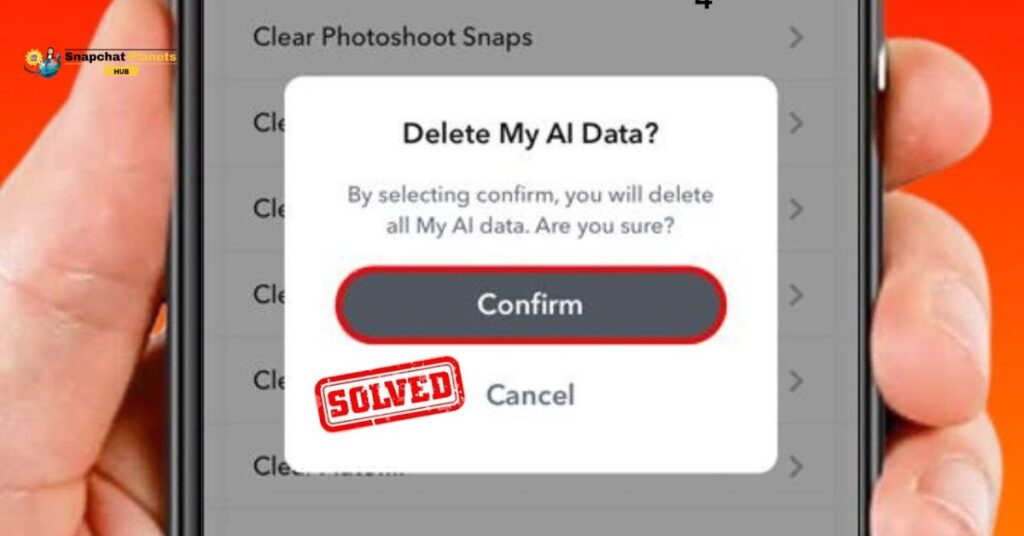
- Select “Clear My AI Data” before confirming your choice.
iPhone users can achieve the same by:
- Going to Profile Settings.
- Navigating to Privacy Controls.
- Tapping “Clear Data,” followed by “Clear My AI Data.”
It’s important to note that Snapchat can take up to 30 days to fully remove your data from their servers, so be patient during this process.
Why Some Users Want To Remove My AI
For many users, the desire to remove My AI from their Snapchat feed stems from various personal preferences.
- The clutter created by AI messages can feel overwhelming, making it harder to find important conversations.
- Privacy issues also loom large, as some users worry about how their data is stored and potentially utilized.
- The need for a simpler and more focused experience drives many to seek a distraction-free environment.
Conclusion
If you want to remove My AI on Snapchat, the process is easy and straightforward, especially if you have Snapchat Plus.
You can choose to unpin, delete, or even clear all your data with just a few taps. This gives you the power to manage your app how you see fit.
Whether you need a break from AI interactions or simply prefer a clutter-free interface, Snapchat allows you to make those changes effortlessly. So, go ahead and take control by removing My AI on Snapchat to tailor the app to your liking.
FAQs
Will removing My AI delete my chats with it?
Yes, removing it will delete the chat history you had with My AI.
Can I add My AI back later?
Yes, you can re-add My AI anytime from the app’s settings or by searching for it.
Does removing My AI affect my other Snapchat features?
No, removing My AI only affects the chatbot and does not change other features.